
As a homelab user, you probably got started with Docker, and quickly started managing your containers using Portainer. Portainer is not only approachable but, in a pinch, it makes managing containers on a remote server much more comfortable than using ssh on your phone. Which is the problem I solved when I discovered Portainer.
As I got more comfortable, I went from one or two containers, to a half dozen docker-compose.yaml’s. I started to depend on some of these services and I wanted to back up the configurations so I could have somewhat more trust in their permanence.
If you’re like me, nothing is more permanent than git, since the inception of my Personal Cloud, I would backup my Portainer configurations in git. Lets paint a picture of what that looks like.
Using Portainer, the process for this would require I copy each change made in the compose configuration, from the ui to a git repository. However there is a secondary cost to this decision.
One does not simply, commit secrets to git, so now I also have to copy my stack.env file somewhere safe. Using Portainer I have two choices for storing the stack.env.
- Need access to
sshto write thestack.envon the container host, and useservices[.].envfile to load the file on disk. - Write the fields into the environment variables editor in the ui. Which requires two clipboard copies per variable as the fields are separated in the ui.
I have become a human reconciler. 🤡
All of this friction involved to get closer to reproducibility is something I work to eliminate professionally by building cloud platforms. Getting the reliability that these platforms offer had me gravitating towards a cutting over to a TalosOS cluster of local and hosted worker nodes.
Talos is a great way to repay the technical debt however building a cluster comes with a new suite of tools to be configured prior to a cut over. And that friction will be there throughout the entire process of building the cluster. I wanted something intermediate, like stellar, so I could get some piece of mind now.
Because I have started to really depend on the services I manage, I also wanted basic alerting, especially around the more storage heavy services I run locally like my media server. The simplest solution I found was to use ntfy, and curl, and leap at any opportunity to leverage native ntfy integrations.
Portainer Alerting is a Paid Feature
I was excited to see Portainer introduce native alerting, it had the potential to remove much of the effort around basic alerting, which made it really disappointing that it ended up being an enterprise feature.
There are now many alternatives to Portainer, so I set out to find alternatives, and came across a few different solutions. However they all just seem stripped down Portainer uis, when what I really wanted was something closer to being git-ops driven.
At work I am spoiled by the git-ops workflow, I use a mix of Terraform, and ArgoCD, to manage our platform. Its wonderful being able to quickly roll-back using a git revert and it feels magical committing a Kubernetes manifest, or Helm configuration, to git and seeing it replicated as regional deployments across several clusters.
Building the Talos cluster for Homelab 2.0 would be a great opportunity to spin up Forgejo runners, and bring that sweet git-ops convenience into my homelab.
In the meantime, I longed for something similar for my collection of containers on my homelab, nas, and vps. This collection has since grown to become more of a Personal Cloud. I am still in the “between phase” of switching from Docker to a bona-fide Talos Linux cluster. And any reduction in friction now, can further accelerate that process, something like a Homelab 1.5.
Enter Komodo
Komodo isn’t just frontend for Docker/Podman, it is the answer to this “between phase”, FoxxMD so eloquently describes. Komodo swallows up the manual reconciliation process for all of my container hosts so I can focus on maximizing the value I get from Homelab 1.0.
It removes all of the pain points that grew out of using an instance of Portainer on each host.
Installing Komodo
Komodo consists of three components. The Core ui, it’s document database, and Periphery, an agent that facilitates communication between Core and a Docker host’s docker socket.
First we will install core, which acts as a control plane for any number of docker hosts or swarms.
At the time of writing I haven’t yet figured out how to use periphery->server configuration when periphery is running on the same machine as core.
Because of this, the core configuration used in this post is configured for both passkey and mTLS authentication. In practice, you only need to use one of these authentication methods.
Installing Komodo is as simple as choosing one of their example docker-compose.yaml files for either Mongo or Ferretdb. I chose Ferretdb as I personally prefer Postgres to MongoDB.
The example expects you to pass variables in from a compose.env file. The following environment variables will initialize Komodo with the local periphery agent as the first server.
It is important you also supply the DOCKER_API_VERSION environment variable to the periphery container. It’s value should match that of your docker daemon’s server api version as printed in docker version.
KOMODO_FIRST_SERVER=https://periphery:8120
KOMODO_FIRST_SERVER_NAME=${CORE_SERVER_NAME} # Give the first server a custom name.
DOCKER_API_VERSION=1.52
Connecting Core to Periphery clients
At the time of writing this article the documentation is not indicative of the
2.0-devrelease which has security improvements to it’sclient->servermodel.If you are following my example, be sure that you use
2.0or greater and follow the amended documentation in this pull request.
Connecting these clients involves the core granting periphery an onboarding key and periphery validating it against the core’s private key. The periphery will need to be able to reach core through a domain, if you’re behind a reverse proxy, the hostname that routes to Komodo core should be used.
There are a few environment variables at play to facilitate this process.
Core environment variables
# This gets generated for you
KOMODO_PRIVATE_KEY=${KOMODO_PRIVATE_KEY}
# This is used for the periphery agent running on the same host as core
PERIPHERY_PASSKEYS=${KOMODO_PASSKEY}
Redeploy, and copy the public key from the container, you will need to volume mount the key into the Periphery container.
Periphery environment variables
PERIPHERY_CORE_ADDRESS=${PERIPHERY_CORE_ADDRESS} # eg: komodo.example.com
PERIPHERY_CONNECT_AS=${PERIPHEY_CONNECT_AS} # eg: Server1
# From Komodo webui
PERIPHERY_ONBOARDING_KEY="${PERIPHERY_ONBOARDING_KEY}"
# Copy this from Core after supplying KOMODO_PRIVATE_KEY
PERIPHERY_CORE_PUBLIC_KEY="file:/config/keys/core.pub"
# This will get generated for you
PERIPHERY_PRIVATE_KEY="file:/config/keys/periphery.key"
When you redeploy Periphery you should see it connect in Komodo’s ui. You can validate the public key core detected in the server’s details page. Compare it to the /config/keys/periphery.pub in the Periphery container.
You should now have two Servers configured from the one Komodo instance. You could technically stop here and manage your compose files in the ui, however the magic of Komodo really comes out when you configure a git repository as a source and begin syncing your compose configurations from git similar to ArgoCD.
You can view an example of both my core and periphery configurations in my Codeberg repository.
Configuring a Git Repository
I use Codeberg as a forge now so this guide will focus on creating an access token in Codeberg and configuring Komodo to read and write from that repository.
First you will need to create an Application Token in Codeberg. You can name it whatever you like. The minimum required permissions are repository:write.
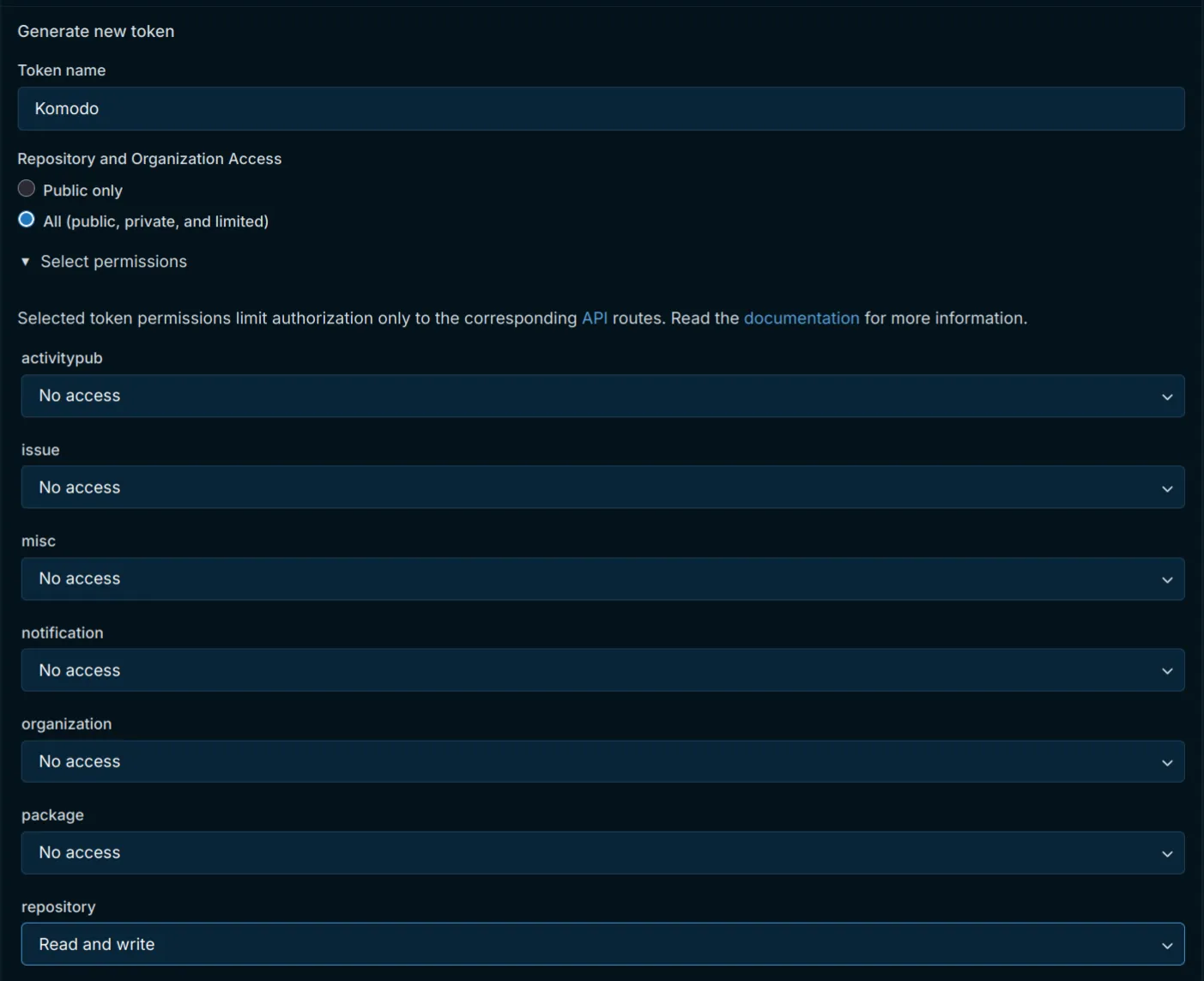 Komodo links together several abstractions to make this work. Komodo syncs a Stack, against a Repo resource, which is made available from a “Git” Provider. All three of these resources need to be created and linked in order for the git-ops workflow to function.
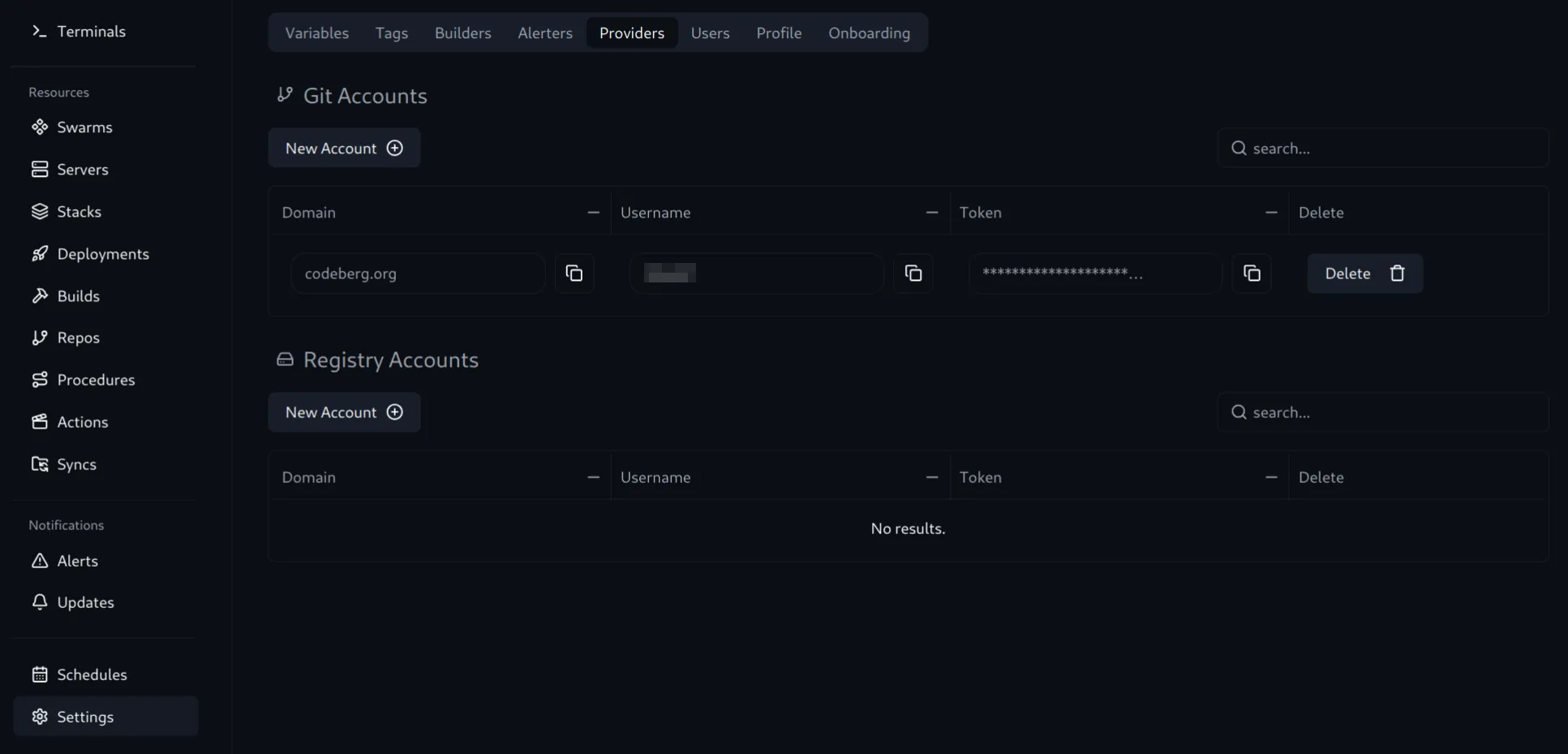 First lets create the Git Provider so we can store the token we created in Codeberg. Create a new Git Account with the following:
Domain: codeberg.org
Username: <your_codeberg_username>
Token: <your_codeberg_application_token>
We will know this provider is working when we try to create a Repo resource. To create a new Repo, you only need to provide a name. Once it is created click on the repo to view it’s configuration.
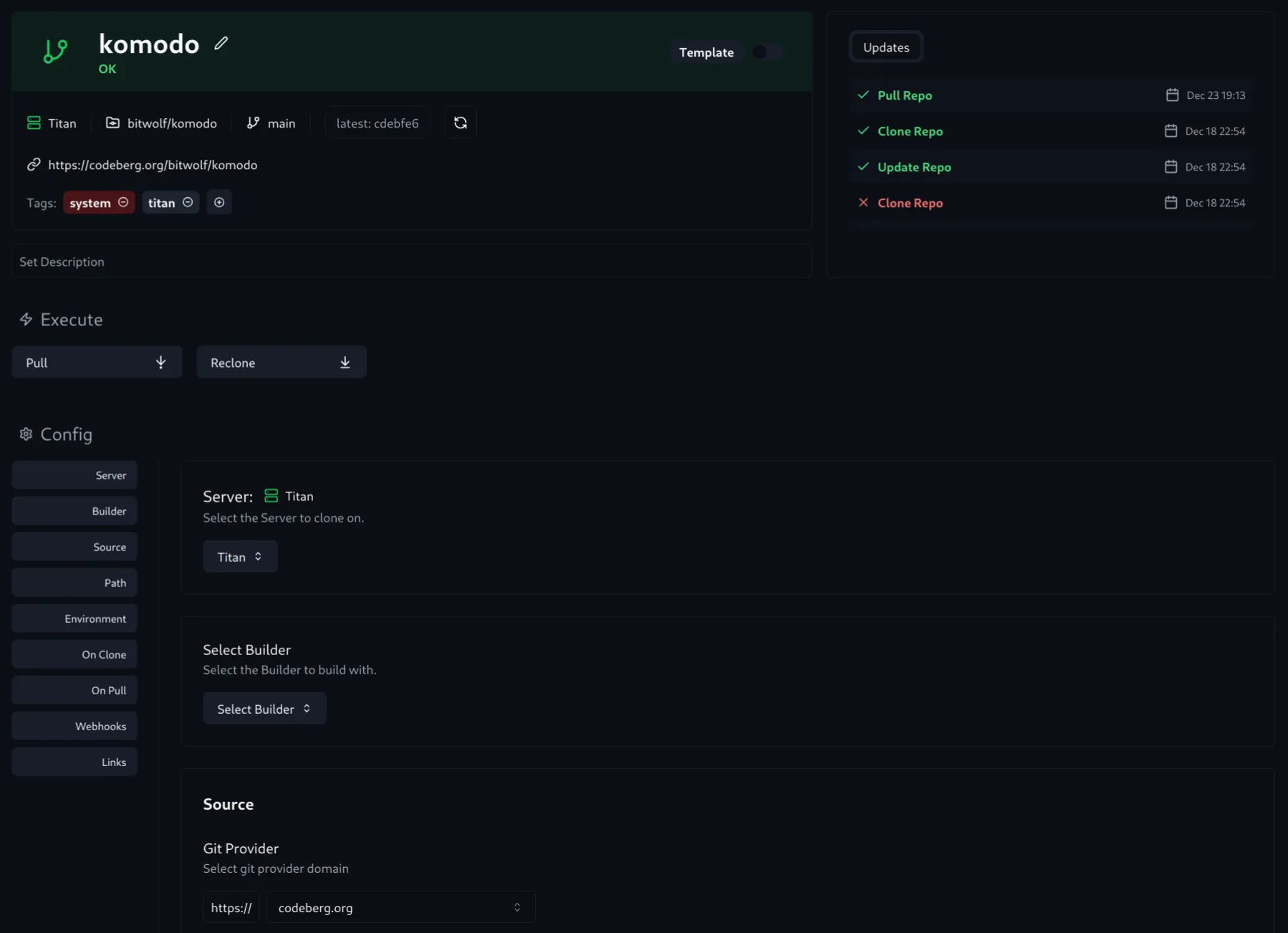 Scroll down to “Source”, you should see codeberg.org under “Git Provider”, and your user name under “Account”. Finally for the “Repo” field enter your username and repository name eg:
 user/myrepo.
Finally you will need to choose one of your servers to clone the repository on. You can test the configuration by clicking the “Pull” button at the top of the page. If all goes well you will see “✅ Clone Repo” in the activity feed on the top right of the page.
This means you’re ready to start migrating your compose stacks into Komodo!
Organizing the Repository
My repository structure is based on FoxxMD’s suggestions and is organized like so:
.
├── justfile
├── README.md
└── stacks
    ├── callisto
    │   └── forgejo-runner
    │       ├── compose.yaml
    │       └── README.md
    └── titan
        ├── blog
        │   ├── compose.yaml
        │   └── README.md
        ├── forgejo
        │   ├── compose.yaml
        │   └── README.md
This is organized as stacks/{server}/{stack}/. Komodo by default looks for an .env and compose.yaml for each Stack resource created in it’s ui. So when we point Komodo to a specific stack directory it will synchronize against the compose.yaml inside that directory.
You can structure the repo however you like so long as you point your Komodo “Stack” to a directory containing a compose.yaml.
Migrating Existing Stacks in the UI
Once you get the pattern migrating existing Portainer stacks is very straight forward. Simply create a stack directory in the repository and paste in your compose.yaml. If you have any hardcoded secrets you will want to replace them with the compose template syntax ${}. These will become variables you supply with an .env file.
If your compose files contain secrets and you do not want to commit the .env files into git, you can create them in the Environment configuration in the Komodo ui. Here you can interpolate Variables and Secrets into your configuration using the [[ ]] syntax. For example:
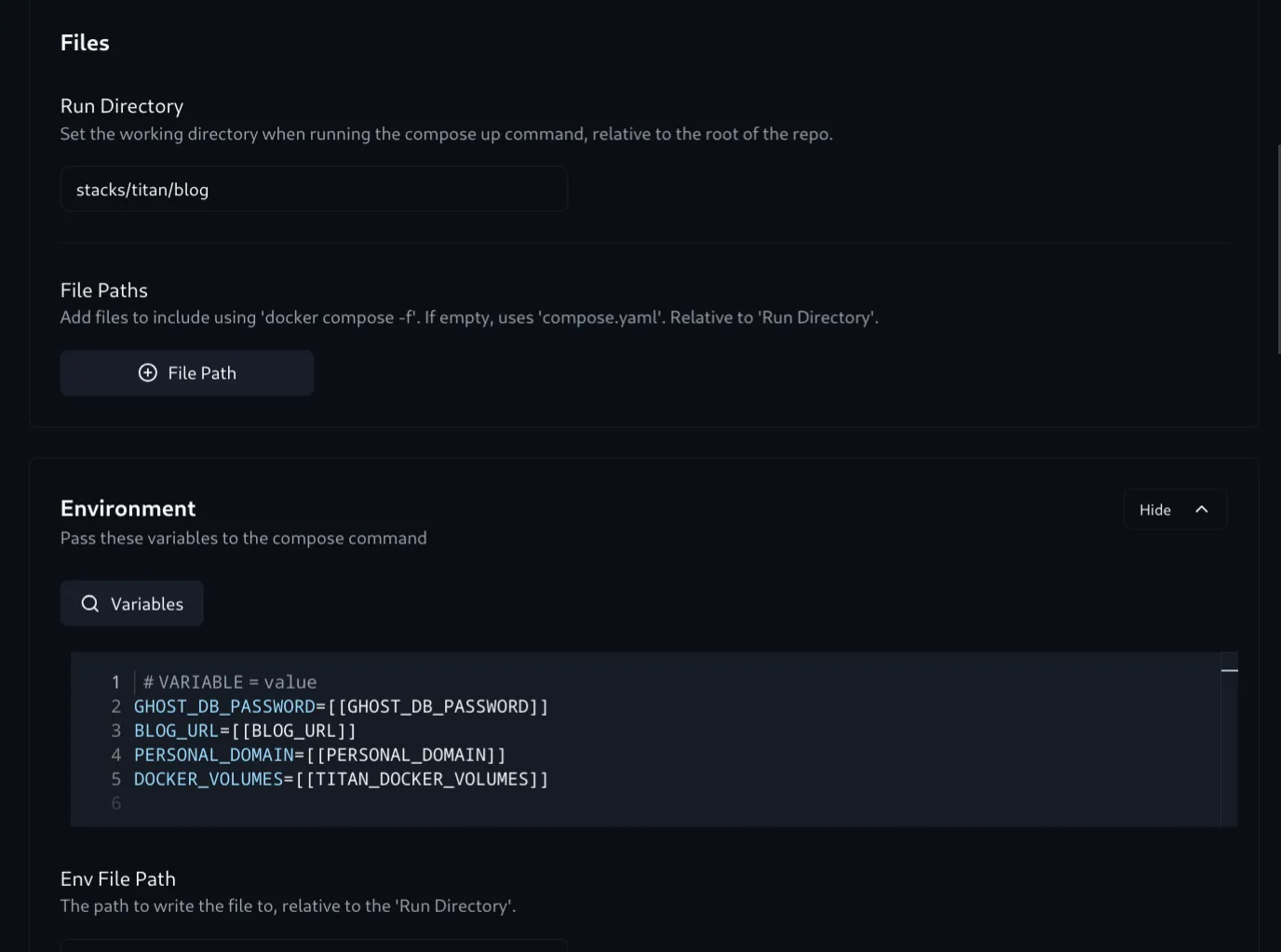 Here we have the
 blog stack, who’s compose configuration was committed to my repository at stacks/titan/blog/compose.yaml. You’re reading from this stack right now!
The compose.yaml has hard-coded environment variables and labels templated out as compose environment variables. In this example, we define the compose environment variables using the “Environment” field.
DOCKER_VOLUMES corresponds to a ${DOCKER_VOLUMES} in the compose.yaml .
And it’s value, [[TITAN_DOCKER_VOLUMES]], corresponds to a secret created in the Komodo ui named TITAN_DOCKER_VOLUMES.
With the compose.yaml committed to the source repo, the Run Directory configured to point to it, and an Environment template that sets all of the required compose environment variables you’re ready to cut over the stack to Komodo. Stop the stack in Portainer and click Redeploy in Komodo.
Note: There is an issue with periphery container image’s working directory configuration. If you run Periphery as non-root it will not put a git configuration in the new home directory.
This will manifest as failures when writing to git with an error asking you to set
git config --global user.name
There are a few workarounds for this described in FoxxMD’s blog post.
Congrats! You now have IaC configured for your compose stacks. 🎉
Moving a compose stack across nodes
The magic really starts to show when I try to begin repaying some of the technical debt I’ve accumulated.
I initially spun up ntfy on my nas so I could notify myself when backups to Backblaze complete. I love ntfy because it is so accessible you can use it almost anywhere. I have since started leveraging the ntfy Home Assistant integration for several automations.
Over the past year I have experienced my fair share of power and internet outages and it doesn’t make sense to have an “Internet is down” notification for a server that is on my lan.
Now that both machines are connected to Komodo via periphery it should be should be easy to move ntfy from my nas and into my vps, and should only take a few minutes.
The process went as follows:
- Update the CNAME record on my domain to point to the reverse proxy that will be in front of ntfy.
- Copy the volumes from the nas to the vps
- Update my my IAC configuration
Changes to be committed:
(use "git restore --staged <file>..." to unstage)
renamed: stacks/callisto/ntfy/compose.yaml -> stacks/titan/ntfy/compose.yaml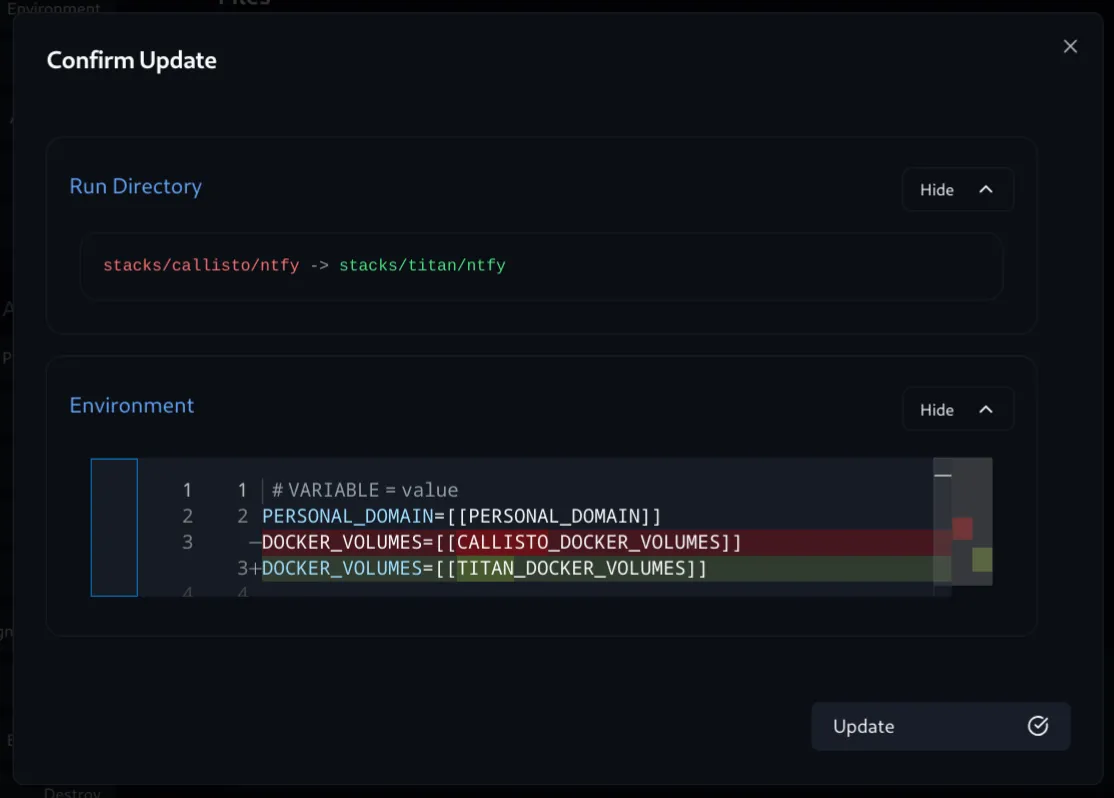 5. Wait for a notification from Komodo telling me when Ntfy is up on Titan
Just like that we’ve seamlessly moved a stack from one server to another. The error prone process of copy and pasting compose.yamls over ssh or across Portainer instances is reduced to one simple diff in the Komodo ui.
Setting up Komodo’s Other Niceties
Seeing the git-ops workflow in Komodo should all but guarantee you are also now thinking like a lizard 🦎.
Komodo also provides a great basic alerting experience which is why we moved ntfy to the new server. Ntfy is configured as a webhook in Komodo and requires an access token created within your ntfy instance.
docker exec -it ntfy ntfy token add $USER
token tk_*** created for user foo, never expires
You will use this token in the endpoint url used for an “Alerter” you create in Komodo.
URL: https://:tk_***@<ntfy_instance>/<ntfy_topic>
Once configured you can click “Test Alerter” and you should see a test notification in your ntfy instance.
This Alerter will give you up/down time notifications for both Servers and Stacks, secret key rotation notifications, and can be hooked into any custom Procedures or Actions you perform using Komodo.
You may find it strange that there is no reference to any community for Komodo in their docs.
Aside from their Github, they also have a discord server, that offers troubleshooting and development advice.
Are you sold?
By now you should be thinking like a lizard 🦎. The piece of mind afforded by using a gitops workflow for the “between phase” of your Personal Cloud is well worth the effort.
And because the migration can be done in piece-meal, with Portainer and Komodo running simultaneously, there is no better time to start than now.